|
|
||
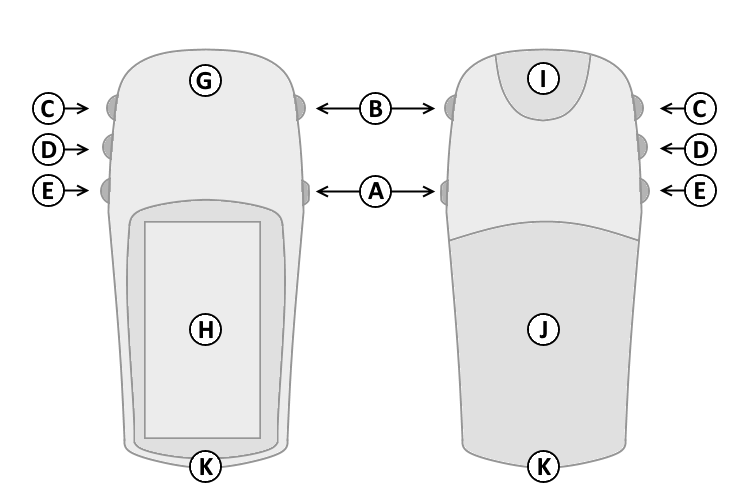
| A. | Power | |
| B. | Page | |
| C. | Up | |
| D. | Down | |
| E. | Enter/Mark | |
| G. | GPS Antenna | |
| H. | Monochrome Display | |
| I. | Power/Serial Data Port | |
| J. | Battery Cover | |
| K. | Lanyard Attachment | |
|
|
||
| A. | Power | |
| B. | Page | |
| C. | Up | |
| D. | Down | |
| E. | Enter/Mark | |
| G. | GPS Antenna | |
| H. | Monochrome Display | |
| I. | Power/Serial Data Port | |
| J. | Battery Cover | |
| K. | Lanyard Attachment | |
| A. Power Button | D. Down Button | |
| 1. Press and hold to turn unit on/off. | 1. Select page and menu options. | |
| 2. Press and release to cycle the display backlight on/off. | 2. Zoom In on the Map page. | |
| B. Page Button | 3. Cycle through elevation computer data in Elevation page. | |
| 1. Press and release to loop through display pages. | 4. Cycle through trip computer data in Pointer page. | |
| 2. Press and release to exit/quit a function. | 5. Adjust contrast (lighter) in the Satellite page. | |
| 3. Press and hold to activate electronic compass and | E. Enter/Mark Button | |
| display Pointer page. | 1. Press and release to view option menu for active page. | |
| C. Up Button | 2. Press and release to confirm data entry or menu selections. | |
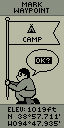
| 1. Select page and menu options. | 3. Press and hold to activate Mark Waypoint page. | |
| 2. Zoom Out on the Map page. | ||
| 3. Cycle through elevation computer data in Elevation page. | ||
| 4. Cycle through trip computer data in Pointer page. | ||
| 5. Adjust contrast (darker) in the Satellite page. | ||
 |
 |
 |
 |
 |
 |
| SkyView | Map | Pointer | Elevation | Menu | Mark Waypoint |
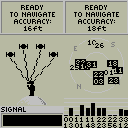
The SkyView page displays (in animation) the eTrex Summit gathering the necessary satellite information to function.
A "Ready to Navigate" message will appear when the receiver has gathered information from a minimum of three satellites.
The current satellite receiver status and estimated positional accuracy are displayed at the top of the SkyView page.
The bottom of the SkyView page displays a signal strength bar to let you know when satellite signals are weak or when you need to move to a better location.
Press Enter (E) and select 'Advanced SkyView' (may require firmware update) to enable Advanced SkyView Mode (displays the position in the sky and signal strength for each satellite the unit is tracking).
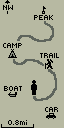
The Map page provides a picture of where you are, where you are going (path to destination), where you have been (track log), and waypoint names and symbols.
The eTrex rotates the Map page as you move such that waypoints that are ahead of you are displayed in front of the animated figure.
The North Pointer shows you which direction on the Map page is north.
Press and hold the Up (C) or Down (D) buttons to change the map scale as desired.
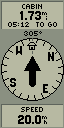
The Pointer (Navigation) page helps guide you to a destination.
When moving without a destination selected, the upper data field displays your moving direction and speed.
When moving with a destination selected (navigating), the name of the destination waypoint, as well as distance and time to destination are displayed in the upper data field. Simply follow the Compass arrow to find your destination.
Press the Up (C) or Down (D) buttons to cycle the lower data field through available Trip Computer data:
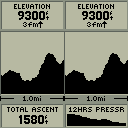
The Elevation page displays a graph of elevation changes over distance or time.
The upper data field displays current elevation and rate of ascent/descent.
Press the Up (C) or Down (D) buttons to cycle the lower data field through available elevation data:
The Trip Computer page (firmware v3.00 and above) displays displays five data fields.
Each data field is user configurable.
To change data fields, press Enter (E) to open the Options Menu, then use the Up (C) or Down (D) buttons to select the desired data field and choose from available Trip Computer data:
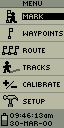
The Menu page provides access to advanced features and settings.
The Menu page displays the current date, time, and battery status.
Press the Up (C) or Down (D) buttons to highlight the desired menu selection.
Press Enter (E) to activate the highlighted menu selection: